Time to study: ~55 min You will learn: how to write a css rule, the handful of properties that do most of the work, and why a css typo is the quietest bug u will ever have.


← Chapter 1 | back to HTML & CSS 101 | next: Chapter 3 →
html puts things on the page. css decides what they look like. that split holds for the rest of the course.
1. what css is, and where u write it
every element u wrote in chapter 1 already had a look. this button:
<button>Subscribe</button>
grey, rounded, with a thin border. u asked for none of it. the browser styles every element before u touch it.
css is how u overrule it. one way to write css is the <style> element, and that is what this chapter and the next two use:
<style>
  put ur css in here
</style>- css can live in 3 places: a
<style>element, a separate.cssfile (chapter 5), or inline on one element (chapter 7). real work uses the separate file.
2. the shape of a rule
a rule is 2 parts: what u are styling, and what u are changing about it.
<style>
  button {
    background-color: red;
    color: white;
  }
</style>
<button>Subscribe</button>
here is what each bit is called:
button {
└─┬──┘
  └── selector: what to style. here, every <button>

    background-color: red;
    └──────┬───────┘  └┬┘
           │           └── value: what to change it to
           └────────────── property: what to change

    color: white;
    └────┬─────┘
         └── the property and the value together are one declaration
}
- the selector picks the elements.
buttonpicks every<button>on the page. - each declaration is
property: value;. colon in the middle, semicolon on the end. - the indenting is for u. the whole rule on one line works just as well.
3. one rule, every button
buttonas a selector does not mean “the button”. it means every button on the page, including the ones u have not written yet:
<style>
  button {
    background-color: red;
    color: white;
  }
</style>
<button>Subscribe</button>
<button>Join</button>
<button>Share</button>
- one rule, 3 buttons, and it will style the 30th one too.
- usually that is what u want. sometimes it is a disaster, because now u cannot make one of them different. chapter 4 is the fix, and it is the most used thing in css.
4. height and width
the button so far is exactly as wide as the word inside it. u can set the size urself:
<style>
  button {
    background-color: red;
    color: white;
    height: 36px;
    width: 105px;
  }
</style>
<button>Subscribe</button>
pxmeans pixels, so36pxis 36 dots tall.- the other units get chapter 3.
- careful with fixed widths.
105pxmeans 105px whatever is inside, so a longer word spills out. real layouts set fewer sizes than u expect and let the content decide.
5. the border, and how to get rid of it
the thin grey line around the default button is a border, and it is the first thing u remove:
<style>
  button {
    background-color: red;
    color: white;
    height: 36px;
    width: 105px;
    border: none;
  }
</style>
<button>Subscribe</button>
to build a border instead of removing one, there are 3 properties, one for each thing a border has: a colour, a style and a thickness.
<style>
  button {
    background-color: white;
    height: 36px;
    width: 105px;
    border-color: red;
    border-style: solid;
    border-width: 3px;
  }
</style>
<button>Subscribe</button>
change
border-styletodotted:
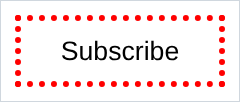
and to
dashed:
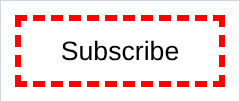
solid,dottedanddashedare the 3 u will use. the rest are worse.border-styleis the one that matters. a colour and a width with no style gives u nothing, because the default style isnone. that is a quiet twenty minutes if u do not know it.- the shorthand
border: 1px solid redwrites all 3 at once. it is in chapter 7 with the box model.
6. border-radius and cursor
border-radiusrounds the corners, and it works whether or not the element has a border:
<style>
  button {
    background-color: red;
    color: white;
    height: 36px;
    width: 105px;
    border: none;
    border-radius: 2px;
    cursor: pointer;
  }
</style>
<button>Subscribe</button>
2pxis the small softening real sites use. turn it up and it keeps going until the ends are semicircles:

- the button is 36px tall, so 18px (half) is where the ends go fully round. more than half changes nothing.
cursor: pointeris the little hand u get over a link. it does not show in a screenshot, and it is the difference between something that feels clickable and something that does not. put it on anything clickable.
7. what a typo does
here is the same rule with one letter wrong:
colourinstead ofcolor.
<style>
  button {
    background-color: red;
    colour: white;
    height: 36px;
    width: 105px;
    border: none;
  }
</style>
<button>Subscribe</button>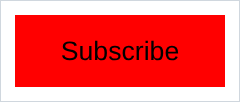
red background, black text. the bad line vanished and the rest of the rule worked.
- css never reports an error. it drops the line it did not understand and carries on. no warning, nothing anywhere.
- same for a misspelled value, a missing semicolon, a
}in the wrong place. all silent. - so when a style does nothing, check the spelling before u doubt the concept. i have rewritten whole rules that were right except for one letter.
- css spells it the american way:
color,center,gray. (greyworks too, but only as a colour name.) - devtools shows the dead line with a strike through it. that is the real fix, and it is chapter 4.
8. when two rules say different things
nothing stops u writing the same property twice:
<style>
  button {
    background-color: red;
  }
  button {
    background-color: green;
  }
</style>
<button>Subscribe</button>
- green wins because it is written later. same selector, last one wins.
- when the selectors are different, a system called specificity decides. that needs classes first, so it waits for chapter 11.
- for now: if u changed something and nothing happened, scroll down. u may have written it twice.
9. how to google a css property
nobody has the property list memorised and nobody is trying to. there are hundreds of them. the skill is searching, and the trick is to search for what u want, not for the property name u are guessing at:
css rounded corners
css text italic
css space between lines
css make text not selectable
- searching “css border-radius” only works if u already knew the answer.
- the first result is usually MDN (
developer.mozilla.org), which is the real documentation and free. w3schools is fine for a quick example, thinner on detail. - then try it in ur own file. a property u pasted and never rendered is not one u know.
NOTES
-
every declaration ends with a
;. the last one in a block does not strictly need it. write it anyway, because the moment u add a line under it the missing semicolon breaks both. -
a css comment is
/* like this */.<!-- -->does not work inside<style>. comments are the fastest way to find a broken style: comment out half a rule and see which half was doing it. -
colormeans text colour. not the background, not the border. it is badly named and it is never going to change. -
whitespace in css is free too.
button{background-color:red}is the same rule. formatted is for u. -
<style>belongs in the<head>. it works anywhere, which is how these examples get away with the top of the file. chapter 5 builds the real page around it. -
u cannot style everything. parts of a form control are drawn by ur operating system and ignore u. it is the one place the same html genuinely looks different on a mac and on linux.
Assignment
the exercises in this chapter follow HTML & CSS Full Course by supersimple.dev.
- Put a button on a page and make it red with white text.
- Add 2 more buttons without touching ur css. Count how many rules it took to style all 3.
- Give the button a height of 36px and a width of 105px.
- Take the border off it.
- Now put a 3px dotted green border on it, using the 3 separate border properties.
- Round the corners by 5px, and make the mouse turn into a pointer over it.
- Misspell one property on purpose and reload. Write down what happened to that line, and what happened to the rest of the rule.
- Add a
<p>to the page and give it white text on a black background, without changing anything about the button. - Find out how to make text italic, using nothing but a search engine, and do it to the
<p>.
stuck, or done and want to check? the solutions are here
or see it finished: the assignment is running here, as a real page u can scroll, hover and drag narrower. the edit it button on it opens the same code in the playground.