Time to study: ~40 min You will learn: what a web page actually is, how to write ur first elements, and the 3 rules of html syntax that stop u writing broken pages later.


← back to HTML & CSS 101 | next: Chapter 2 →
html is the structure of a page: the words, the buttons, the images. what is there. css is what it looks like, and that is chapter 2. html comes first because there is nothing to style until something exists.
1. a web page is just a text file
nobody says this out loud, so u assume a web page must be complicated. it is a text file with
.htmlon the end. no install, no build step. any editor writes it, any browser opens it.
make a folder to work in and a file inside it:
mkdir html-test
cd html-test
open index.html in ur editor and put one line in it, no tags at all:
hello, this is my first pageopen that file in ur browser (double click it, or drag it into a browser window):

- the
.htmlon the end is what makes it a page. save the same content ashello.txtand the browser prints the tags as text instead of drawing them. a.txtfile is text, an.htmlfile is instructions. - from here on the whole course is one loop: change the file, reload, look.
2. <button> and <p>, ur first two elements
u draw things on the page by wrapping ur text in tags. here are the two the reference starts with:
<button>Hello</button>
<p>paragraph of text</p>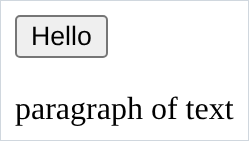
<p>is a paragraph.<button>is a button.- the button already looks like a button and u did not ask for that. every element comes with default styles. chapter 2 is mostly about replacing them.
- the paragraph took its own line and the button did not. that is another default, called
display, and it gets chapter 7.
3. what an element is made of
every element is 3 parts: the opening tag, the content, the closing tag.
<p>paragraph of text</p>
└┬┘└───────┬───────┘└┬─┘
 │         │         └── closing tag
 │         └──────────── the content
 └────────────────────── opening tag
- the only difference between the two tags is the
/. that slash is the whole “this one ends it”. - the word in the angle brackets (
p,button) is the tag name, and it decides what the thing is. - element is the whole thing. tag is just the
<p>bit. people mix the words up and nothing bad happens, but now u know.
4. what happens when u forget the closing tag
u will forget one. better to see it now at 2 lines than at 200. here the first
<p>is never closed:
<p>the first paragraph
<p>the second paragraph</p>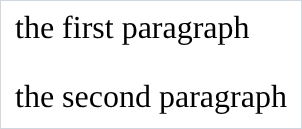
two paragraphs. it looks completely fine.
- that is the problem, not the good news. html never shows u an error. no red screen, no line number. the browser guesses and draws something.
- here it guessed right: it saw a new
<p>open and closed the old one for u. - it will not always guess what u meant. forget to close an
<a>and the rest of the page turns into one giant link. - so close every tag. the browser staying quiet is not the same as the code being right.
5. spaces and newlines get squashed
write the same sentence 3 different ways:
<p>paragraph of text</p>
<p>paragraph         of      text</p>
<p>
  paragraph
  of
  text
</p>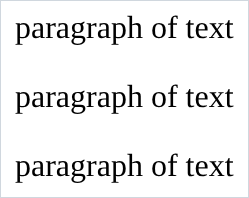
all 3 come out the same.
- the rule: any run of spaces, tabs and newlines becomes one space. 10 spaces is one space. a newline is one space.
- so u can indent however u like. the indenting is for u, the browser throws it away.
- and u cannot push things around with the spacebar. space on the page is css, in chapter 7.
6. putting elements inside elements
elements go inside other elements. this is called nesting, and once u have the tags and the attributes, it is basically all html is:
<p>go to <a href="https://youtube.com">youtube</a> and then come back</p>
- the
<a>sits inside the<p>, so only that word is a link. - the one rule: close the inner element before the outer one.
<p><a>...</a></p>is right,<p><a>...</p></a>is crossed over and wrong. section 4 covers how loudly the browser complains about that (it does not). - deeper nesting gets indented 2 spaces a level, so u can see what is inside what.
7. attributes, and the <a> link
an attribute goes inside the opening tag and changes how the element behaves.
<a>is the link element, and on its own it does nothing useful, because a link needs somewhere to go:
<a href="https://youtube.com">Link to YouTube</a>
hrefis the attribute that says where the link goes. blue and underlined is, again, just the browser’s default style for a link.
here is the shape of it:
<a href="https://youtube.com" target="_blank">
 ┬ └┬─┘ └─────────┬─────────┘ └─┬──┘ └──┬───┘
 │  │             │             │       └── value
 │  │             │             └────────── name
 │  │             └──────────────────────── value
 │  └────────────────────────────────────── name
 └───────────────────────────────────────── tag name
target="_blank"is a second attribute, and it opens the link in a new tab. put both links on a page and compare them:
<a href="https://youtube.com">same tab</a>
<a href="https://youtube.com" target="_blank">new tab</a>
they look exactly the same, and that is the reason i put both on the page. an attribute changes how the element behaves, not how it looks. click the second one and it opens a new tab, and nothing on the page told u it would.
- attributes live in the opening tag only, never the closing one, and more than one is separated by a space.
- the value goes in straight quotes
", the ones ur keyboard makes. paste from a word processor and u get curly ones, which the browser does not understand. - different elements take different attributes.
hrefmeans nothing on a<p>. look them up as u need them.
NOTES
-
some elements have no closing tag.
<br>is a line break,<img>is an image,<input>is a text box. they have no content inside them, so there is nothing to close. u meet<img>in chapter 5 and<input>in chapter 6. -
tag names are not case sensitive.
<P>and<p>are the same element. write them lowercase anyway, because everyone does and mixed case looks like a mistake. -
index.htmlis a special name. when a folder gets served as a real website,index.htmlis the file u get when nobody asks for a specific page. name ur main file that from the start and u never have to think about it again. -
opening the file from the terminal:
xdg-open index.htmlon linux,open index.htmlon mac. if u did Terminal 101 this is the samecdandlsu already know, just pointed at a browser. -
the browser does not notice u saved. it is showing the copy it loaded. hit reload,
Ctrl+RorF5, every time. i lost a stupid amount of time on my first page staring at an old render, wondering why nothing changed. -
Ctrl+Ushows u the html of any page on the internet. not just urs. find a page u like the look of, open the source, read it. it is the cheapest way to learn there is. -
<!-- like this -->is a comment. the browser skips it. use it for notes, or to switch a chunk of html off without deleting it, which is the fastest way to find which part of a page is causing a problem.
Assignment
the exercises in this chapter follow HTML & CSS Full Course by supersimple.dev.
- Make a folder for this course, and an
index.htmlinside it. Put one line of plain text in it, no tags at all, and open it in ur browser. - Add a paragraph and a button underneath it.
- Write the same sentence 3 times: once normally, once with 10 spaces in the middle of it, once split over 4 lines. Say out loud what u expect to see, then reload and check.
- Break one closing tag on purpose and reload. Write down, in ur own words, what the browser did with it.
- Make a link to any website.
- Make the same link open in a new tab instead.
- Put a link in the middle of a sentence so that only one word is clickable.
- Make an
<a>with nohrefat all and reload. Look at what u get, then say in one sentence whathrefwas doing.
stuck, or done and want to check? the solutions are here
or see it finished: the assignment is running here, as a real page u can scroll, hover and drag narrower. the edit it button on it opens the same code in the playground.